AI music channel with Viking identity and one editor

A single software handled the music, images, video clips, voice, subtitles, and timeline for a Viking-themed dark music channel, starting from one prompt: "Epic, Nordic, Viking Music." The first version already produced two song options, then the same editor turned that idea into a narrated clip with synced lyrics and motion.
That matters because the channel starts with a clear identity, not a pile of random AI outputs. The music has to match the Viking visuals, the visuals have to belong to the same world, and the final video has to be built in a way that can keep going on the next upload.
Start with a niche that has a repeatable identity
The first move was not generating music. The workflow started with a niche search for Nordic Music inside the Viral Niche Finder on Like Points. That search brought related ideas like Nordic Instruments, Sleeping for Study Playlist, and Best Nordic New Music Playlist, along with viral channels already working in that space.
That is the right order for a faceless music channel. Before any image or track exists, the channel needs a direction that can repeat on the next upload. If the first video looks like one universe and the second one looks like another, the channel loses the visual identity that makes the niche feel like a channel instead of loose AI files.
Generate the first track before you touch the visuals
Inside HitPaw Macker, the music editor came first. The prompt used was "Epic, Nordic, Viking Music," with rock chosen as the style. That gave the project a base track without leaving the editor to search for another tool, which keeps the workflow inside one place from the start.
The point is not to make a song that only sounds good. The song has to fit the promise of the video. If the visual opens with a Viking warrior in a huge landscape, the music cannot feel soft or generic. The track has to sound like it belongs to the same world as the image.
- Open the music tab inside the editor.
- Enter a prompt that matches the niche, such as Epic, Nordic, Viking Music.
- Choose a style that fits the channel, in this case rock.
- Generate more than one version so you can compare the mood.
- Keep the version that matches the visual identity, not just the one that sounds decent.
 Assistir: Como Montei 1 um CANAL DARK de MÚSICA com IA e Identidade Viking
Watch on the channel: Como Montei 1 um CANAL DARK de MÚSICA com IA e Identidade Viking
Use the same world for every image you generate
After the track, the project needed a face. The image generator used the same atmosphere already defined for the music, instead of asking for any random Viking scene. A reference image could also be uploaded, which makes it easier to keep the visuals close to a channel style you want to model.
The generated image already looked usable as a base, and the next step was to make it feel less static. A still image can work as a starting point, but the channel gains more value when that image moves. That is why the workflow moved from image generation to image-to-video inside the same software.
- Use a specific prompt that matches the same world as the song.
- If needed, upload a reference image from a channel with a similar look.
- Generate the image and pick the strongest frame as the base.
- Send the image to image-to-video to add motion.
- Keep the visual tone consistent across every scene you plan to use.
Build the video with short scenes, not full-length AI footage
The project did not try to turn three minutes of music into three minutes of fully generated video. That would be too much for this kind of channel. Instead, the editor created strong moments, like a warrior walking, a Viking fight, overhead shots of Nordic landscapes, a ship crossing the sea, fire, and snow.
That approach fits the format better. The timeline can be built quickly with several short clips that share the same universe. It also makes testing easier, because you can generate a clip, keep it if it works, discard it if it does not, and place the good ones in the order you want without leaving the software.
- Warrior walking through a Nordic landscape.
- Viking fight scene.
- Overview shots of the Viking world.
- Ship crossing the sea.
- Fire and snow details that support the mood.
Add voice and subtitles inside the same timeline
The editor also handled text-to-speech for a narrated intro. A line like "In lands where winter seemed never to end, warriors found strength in the sound of drums" was pasted into the voice tool, and the software generated narration with selectable voices. That means the intro does not require a manual recording session if the project works better with an AI voice.
Then the subtitles tab handled the lyrics. Auto lyrics generated the song lyrics in real time and kept them synced to the video player. The subtitles could still be customized later, with font, size, positioning, bold, italics, and alignment all available in the text settings. For a music channel, that makes the intro, lyrics, and visual rhythm land in the same place.
- Use text-to-speech for an intro if the channel benefits from narration.
- Pick a voice from the available options and preview it before committing.
- Turn on auto lyrics to generate synced subtitles.
- Adjust font, size, position, bold, italics, and alignment after the auto pass.
- Mute the audio on scenes where speech is not needed.
Assemble the timeline and cut the dead space
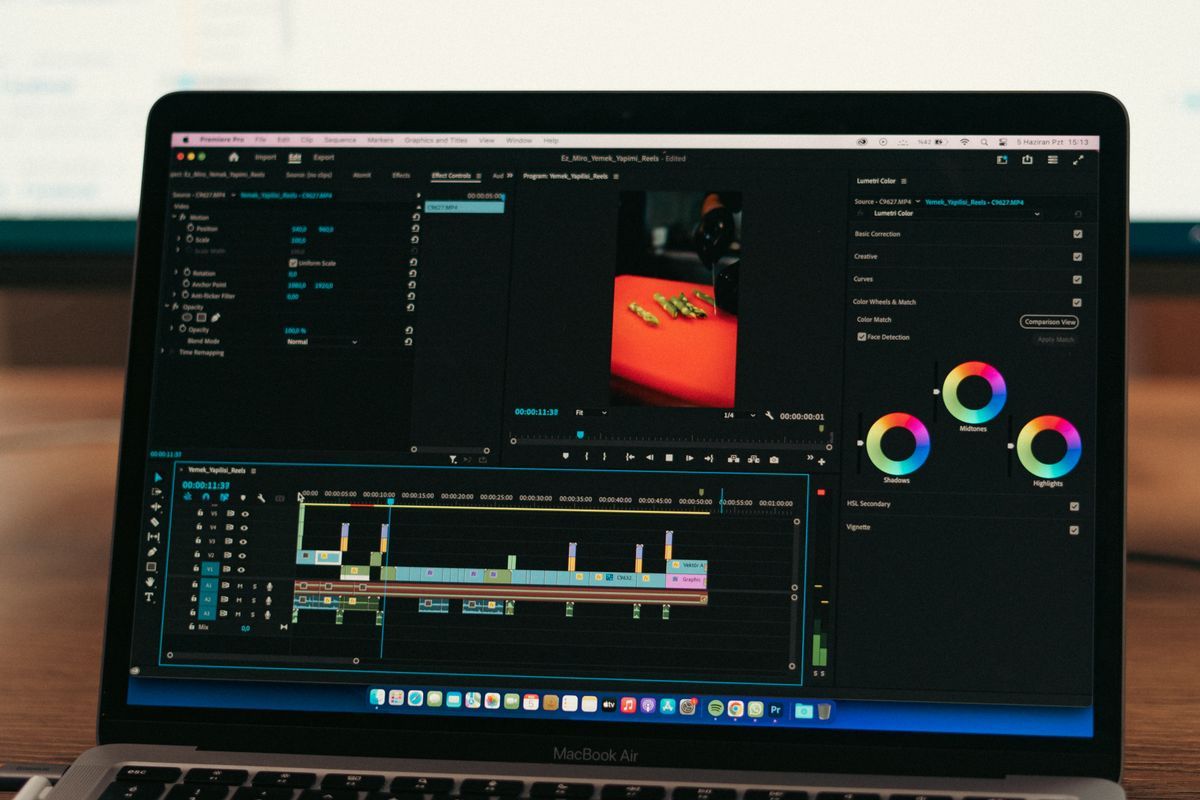
Once the media was ready, it all moved into the timeline. The music track went under the voice, its volume was lowered, and the intro clip played with both layers working together. The editor also used Ctrl plus B to cut the leftover part when the music ended.
That same timeline supports transitions, framing, effects, filters, and other basic editing controls. The workflow stays simple because everything sits in one place. You do not need to open one site for music, another for images, another for voice, and another for subtitles just to finish one dark music video.
- Drag the generated media into the timeline in the order you want.
- Place the voice above the music and reduce the music volume.
- Use Ctrl plus B to cut leftover sections after the music ends.
- Add transitions where the scene changes need more flow.
- Apply effects and filters only after the core timeline is already working.
Use tools that match the stage you are solving
Three Like Points tools fit this workflow cleanly. Viral Niche Finder helps with the first decision, when you need a niche with enough related ideas and existing channels to study. Music Channel Pro fits the music-first stage when you want music and video built for a music channel from a single input.
Fluxo Musical also fits this kind of project because it turns music into a video ready for YouTube. If the channel grows and you want to move from one-off builds to a repeatable pipeline, these tools keep the work closer to the exact stage you are solving instead of scattering the process across unrelated apps.
- Viral Niche Finder for niche selection and related keyword discovery.
- Music Channel Pro for creating music and video for a music channel.
- Fluxo Musical for turning music into a publishable video pipeline.
Frequently asked questions
What niche works best for a faceless AI music channel?
A niche with a strong visual identity works best, because the next upload has to feel like part of the same world. Nordic and Viking music work well in this example because the imagery, mood, and track style can stay connected from one video to the next.
Do I need separate tools for music, images, voice, and subtitles?
This workflow used one editor for all of those steps. The music, image generation, image-to-video, text-to-speech, subtitles, and timeline editing all stayed inside the same software.
How many AI video clips should a music video use?
Short scenes work better than trying to generate the full song as one long video. The example used strong moments like a warrior walking, a Viking fight, a ship at sea, fire, and snow.
Can AI subtitles sync with the song automatically?
Yes, the auto lyrics feature generated the song lyrics in real time and kept them synced in the player. The subtitles could still be adjusted later for font, size, placement, and style.