
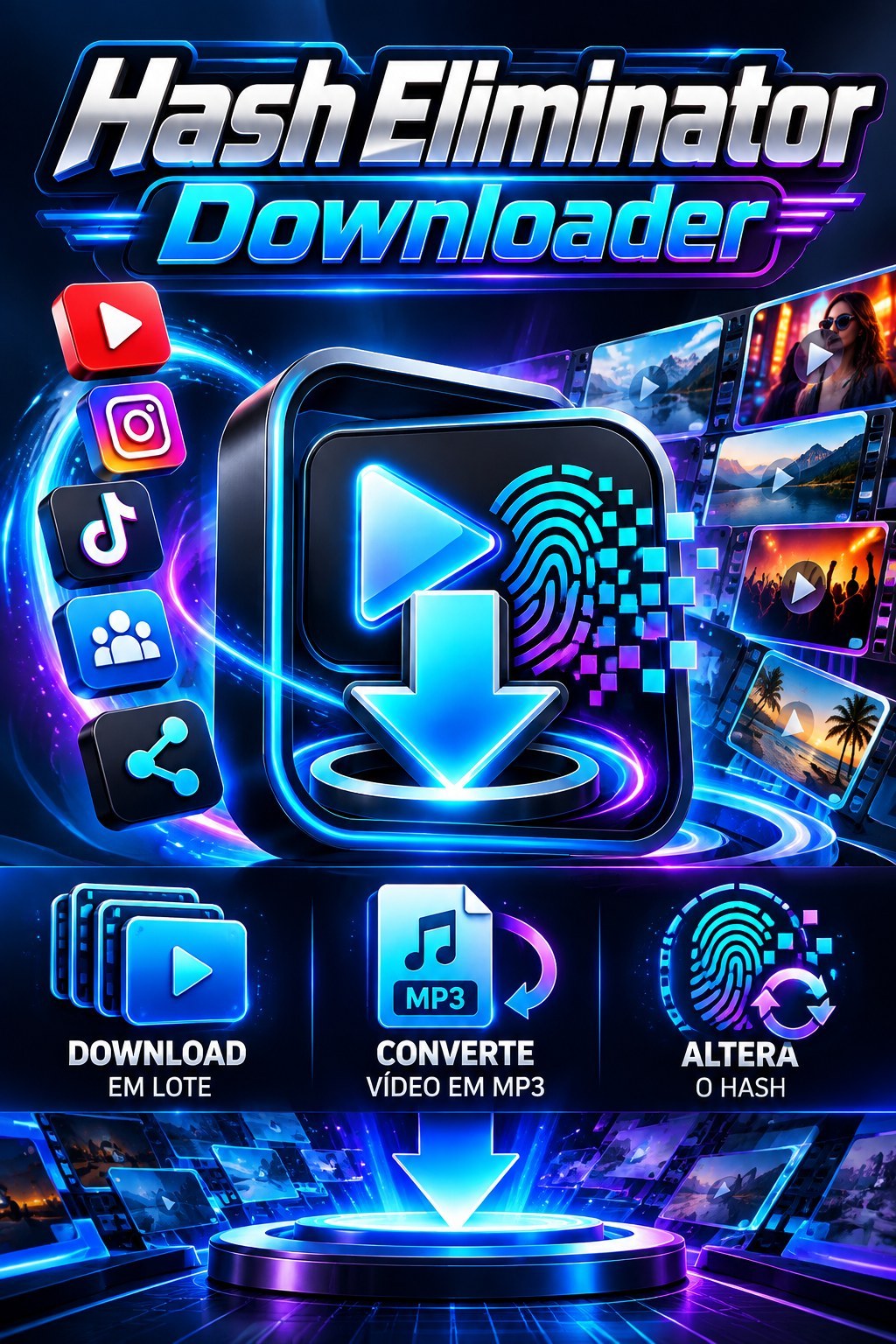
public demonstration without download or serial
Hash Eliminator Dowlnoader
Hash Eliminator DownloaderDownload videos from multiple platforms in batch and generate files with different MD5 hash. The program works with a queue: you paste several links, one per line, and it downloads each item automatically,...
61public views
Textdescriptive presentation
1related areas
Did you like this tool?
Take this for a stronger offering: full access, combo with training or the master version with larger window.
Presentation
Video not available at this time.
The detailed description below remains public for the customer to understand the product.
Specifications
Compatibility
Windows 10/11. Recommended: Windows 11.
Last updated01/10/2026 20:19
Version/download
link updated on 10/01/2026
Public access typePresentation, video and description only. Download and serial remain protected.
Purchase Shortcut
This space welcomes those who have already seen the presentation and are ready to move on.
What This Tool Does
Hash Eliminator Downloader
Download videos from multiple platforms in batch and generate files with different MD5 hash. The program works with a queue: you paste several links, one per line, and it downloads each item automatically, clears the hash of the videos and moves on to the next one.
There is no need to download one link at a time. Paste all addresses on the same screen and track progress through the queue.
Accepted platforms
- YouTube and YouTube Shorts;
- Instagram Public Reels;
- TikTok;
- Facebook Reels and public videos.
The video must be public or available on the connected account. Content that is private, removed, region-locked, or requires a different account may not download.
How to use
- Open the program and enter your email and account password.
- Paste the links into the download box, placing an address on each line.
- Escolha MP4 Video or MP3 Audio.
- Let Best available selected to obtain the best quality that the platform offers.
- Keep the option checked Automatically clear hash on videos.
- Click Add to queue.
The queue processes one download at a time. When one item ends, the program starts the next one. If a link fails, it is identified as an error and the others continue to be processed.
Quality and formats
- Best available — recommended and default option. Download the best image and audio combination available for that link.
- Up to 1080p, up to 720p or up to 480p — use when you want to limit the file size or resolution.
- MP4 Video — downloads the video and audio together when the platform offers both.
- MP3 Audio — extracts audio with high quality. Video hash cleaning does not apply to MP3.
Automatic hash cleaning
In videos, the factory-checked option creates the final file with an MD5 different from the originally downloaded file. The original video is not altered. The queue shows the item as complete only after downloading and cleaning are complete.
Choose where to save
- Click Choose folder.
- Select the desired folder in the Windows window.
- Check the path shown in Saving to.
The choice is saved for future downloads. Use Open destination folder to open the file location.
Use browser cookies
For content that requires login, choose Chrome Connected or Connected Edge before adding the queue. Use this option only if the account is already logged in on the chosen browser. The program does not ask for or enter your website password.
Login, account and access
Access is validated online at each opening. You must have an active account and access to this tool in your plan or license. Without internet, with expired access or with the account blocked, the program informs the reason and does not start the downloads.
Key configuration
If any integration requires a key, it must be registered on your Like Points account panel, never within the program. Open panel Like Points.
After registering or changing a key on the panel, close and open the program again for the change to be recognized.
When a link has an error
- check if the address was pasted in full;
- check that the content is still public and available;
- for content that requires login, choose a logged in browser;
- Please try again after confirming your internet connection.
If the problem continues, click Bug reporting on the main screen and send the generated file to support. The report does not include your password, API key, or cookie.
How to close
Use the button End program at the top of the screen. Wait for the closing message before closing the browser tab. Closing the tab also closes the program after a few seconds when there is no download in progress.
Responsible use
Only download content that you are authorized to use. Respect copyright, the rules of each platform and people's privacy.
Want The Complete Ecosystem?
After reading the details, many people prefer to guarantee greater access rather than deciding tool by tool.
Other Tools to Show Along