public demonstration without download or serial
Treblo automations - music
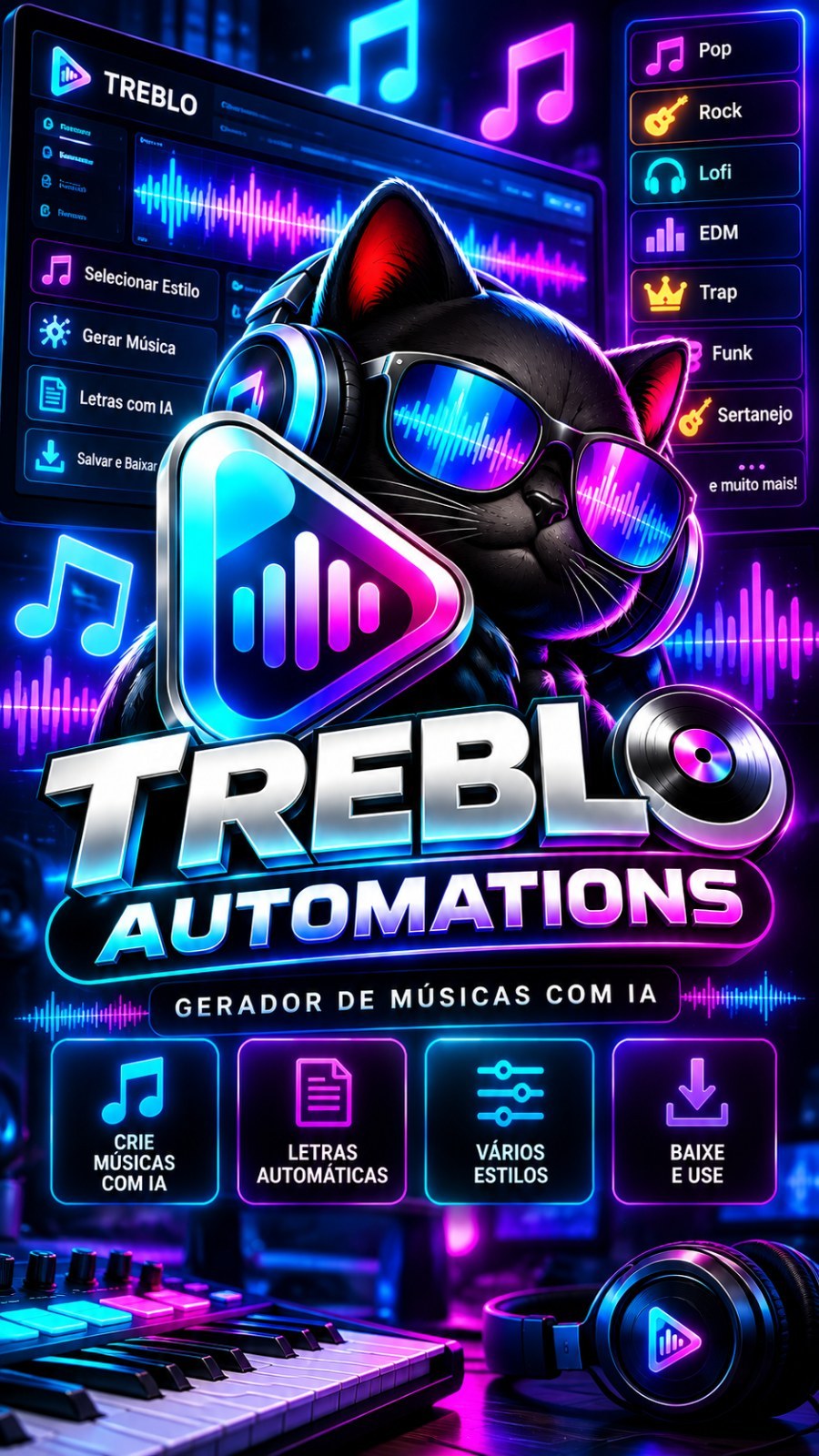
Treblo Automations Create dozens of songs in Treblo without clicking one by one. You describe the style (or bring the lyrics), choose how many songs you want and the program sends the requests, waits for them to be ready and downloads...
94public views
Videodemo available
1related areas
Did you like this tool?
Take this for a stronger offering: full access, combo with training or the master version with larger window.
Presentation
Specifications
Compatibility
Windows 10/11. Recommended: Windows 11.
Last updated02/10/2026 16:28
Version/download
link updated on 10/02/2026
Public access typePresentation, video and description only. Download and serial remain protected.
Purchase Shortcut
This space welcomes those who have already seen the presentation and are ready to move on.
What This Tool Does
Treblo Automations
Create dozens of songs on Treblo without clicking one by one. You describe the style (or bring the lyrics), choose how many songs you want and the program sends the requests, waits for them to be ready and downloads everything by itself into your project folder, alternating between several Treblo accounts.
Website used: treblo.com (free, sign in with your Google account)
What the tool does
- Batch Songs: order 10, 50 or 100 songs at once. Each request to the website returns 2 songs.
- Multiple accounts taking turns: Register as many Treblo accounts as you want. The program distributes the work, uses several at the same time and gives each one a break. As soon as it goes off the air, it stays aside and the others continue.
- Automatic download: each finished song is downloaded to the project folder, in the format you choose (MP3, WAV, FLAC, M4A or the original from the website).
- Separate projects: each project has its folder, its style and its settings. Switch projects at the top of the screen without losing anything.
- Five ways to create: the website writes the lyrics, artificial intelligence writes the lyrics, folder of lyrics in notepad, pasted lyrics or ready-made orders.
- Protected against website blocking: the program waits a few seconds between one opening and another, gives a rest to the account that failed and, if the site blocks access, to all accounts for 30 minutes and resumes on its own.
- Works hidden: browser windows may be hidden while you use your computer. A button shows the window when you want to see it.
The five ways to create
- The site writes the lyrics: you describe the style and Treblo writes and sings. The fastest way.
- The AI writes the letters: you give the theme and the artificial intelligence writes different lyrics for each song.
- Folder with letters (.txt): each notebook becomes a song and the file name becomes the title. The program also looks inside subfolders. To give a letter a different style, write underneath it Style: and the description. Letters already used in the project go to the end of the line.
- Paste ready-made letters: paste several letters at once, separated by a line with --- (or numbered 1), 2)...). Title: The first line gives the name of the song.
- Ready orders: Paste your orders (one per block, separated by ---) or choose a folder with them. If you select the AI option, it reads the request and writes the lyrics and title; unchecked, the website itself writes.
The option Instrumental makes songs without voices.
Step by step
- Open the program and enter your Like Points email and password.
- Go to the tab Treblo Accounts, click Add account and then in Connect.
- A Chrome window opens on the Treblo website. Log in to your Google account yourself. The first time the site asks for your date of birth: fill it in. The window closes by itself when the account is ready and the card turns green with your email.
- Repeat for each account you want to use.
- At the top, in Songs from this project go to, click Choose and choose the folder where the songs will be saved.
- In the tab Create music, choose how you want to create it, write the style (up to 1000 characters), quantity, voice language and duration.
- Click Generate songs.
- Follow the tab Progress and batches. When finished, click Open folder to listen to the songs.
Project adjustments
- Voice language: 13 languages, including Brazilian Portuguese, English and Spanish.
- Song duration: the default lets the site decide (2-4 minutes). You can also ask for about 1, 2, 3, 4 or 5 minutes. The website may vary a few seconds.
- Extra steering (optional): one more instruction that applies to all the songs in the batch.
- What to avoid in music (optional): styles or instruments you don't want, separated by commas.
- File format: MP3 (default), WAV (lossless, large file), FLAC (lossless, smaller than WAV), M4A, or website original (.ogg).
- Vary the style between songs: prevents the batch from coming out all the same.
- Number the files: continues numbering from the last number already in the folder.
- Also save a notebook: stores the style and lyrics of each song alongside the file.
Treblo Accounts
- How many accounts work together: the program suggests a number depending on your computer. More accounts at the same time = faster batch.
- Show browsers: brings to the screen the windows that are working hidden.
- Take them all off: releases accounts that are on pause immediately.
- Update situation: Check now, on the website, which accounts are connected.
- Each card shows the account's email and its status: connected, disconnected, resting or working.
General Settings
They stay in the tab Settings and apply to all projects. Almost no one needs to touch it.
- Songs per account before switching: how many orders each account makes before their turn passes.
- Ceiling per account per day: daily song limit per account (0 = no limit).
- Time off when switching accounts: minutes of break for each account after their turn.
- Rest when the site refuses: minutes of pause when the website warns that the account has reached its limit.
- Interval between shipments: seconds of waiting between one order and another.
- Maximum wait for music: how long to wait for a song to be finished before giving up on it.
- Attempts per song: how many times to try again a song that failed.
- Working with the hidden browser window: turned on, windows do not appear on the screen while working.
- Generate via Treblo paid API: optional. The Treblo website is free; the Treblo API charges credits (about 100 per song). Only call if you purchased credits on Treblo and pasted the developer key on your account card.
Required API Keys
API key is a password to access an artificial intelligence service. She is registered with Like Points dashboard, never within the program. Did you register or exchange a key with the program open? Close and open the program again.
- OpenAI (optional, only for "AI writes the letters" and for AI to read ready-made requests): register key · video tutorial. Depending on your plan, the AI is already released without needing its own key.
- OpenRouter (optional, alternative to OpenAI): register key · video tutorial
"Site writes lyrics", "Folder with lyrics" and "Paste ready-made lyrics" modes no key required.
Requirements
- Windows 10 or 11 and Google Chrome installed.
- Internet on all the time.
- One or more Google accounts to log into Treblo.
- Active account on Like Points with this tool released in the plan.
Common Problems
- "No accounts connected to work": Go to Treblo Accounts and click Connect on the disconnected accounts. Log in to your account in the window that opens.
- Card says "complete registration in the Treblo window": the site is asking for your date of birth. Fill in the open window; it closes by itself when finished.
- "Sorry, you have been blocked" appears: the site blocked access due to excessive use. The program clears the account lock and, if it continues, pauses all accounts for 30 minutes and resumes on its own. Don't keep opening and closing the program, this prolongs the lock.
- The site asked you to confirm that you are not a robot: click Show browsers and resolve verification in the account window. The account returns to work later.
- The AI that writes letters is not released: use "The website writes the lyrics", "Folder with lyrics" or "Paste ready-made lyrics", or register your key on the Like Points dashboard and open the program again.
- Style greater than 1000 characters: the program summarizes itself before sending.
- Windows shows "Unknown publisher" the first time: Click More Info and then Run Anyway.
How to close the program
Click End program at the top of the screen. Closing the browser tab also shuts down the program after a few seconds. Avoid closing from the black window or Task Manager: this may disconnect Treblo accounts.
Report a problem
Click Bug reporting at the top of the screen. The program saves a file with the report and opens the support WhatsApp with the message ready; just attach the file to the conversation.
Want The Complete Ecosystem?
After reading the details, many people prefer to guarantee greater access rather than deciding tool by tool.
Other Tools to Show Along