public demonstration without download or serial
SceneSync AI — illustrated video speaks to speech - Viral time Stamp
SceneSync AI — illustrated video talks the talk SceneSync AI turns a topic, script or ready-made narration into an illustrated video from start to finish: it narrates, times each word, writes a prompt for each...
167public views
Textdescriptive presentation
2related areas
Did you like this tool?
Take this for a stronger offering: full access, combo with training or the master version with larger window.
Presentation
Video not available at this time.
The detailed description below remains public for the customer to understand the product.
Specifications
Compatibility
Windows 10/11. Recommended: Windows 11.
Last updated08/10/2026 18:51
Version/download
link updated on 10/08/2026
Public access typePresentation, video and description only. Download and serial remain protected.
Purchase Shortcut
This space welcomes those who have already seen the presentation and are ready to move on.
What This Tool Does
SceneSync AI — illustrated video talks the talk
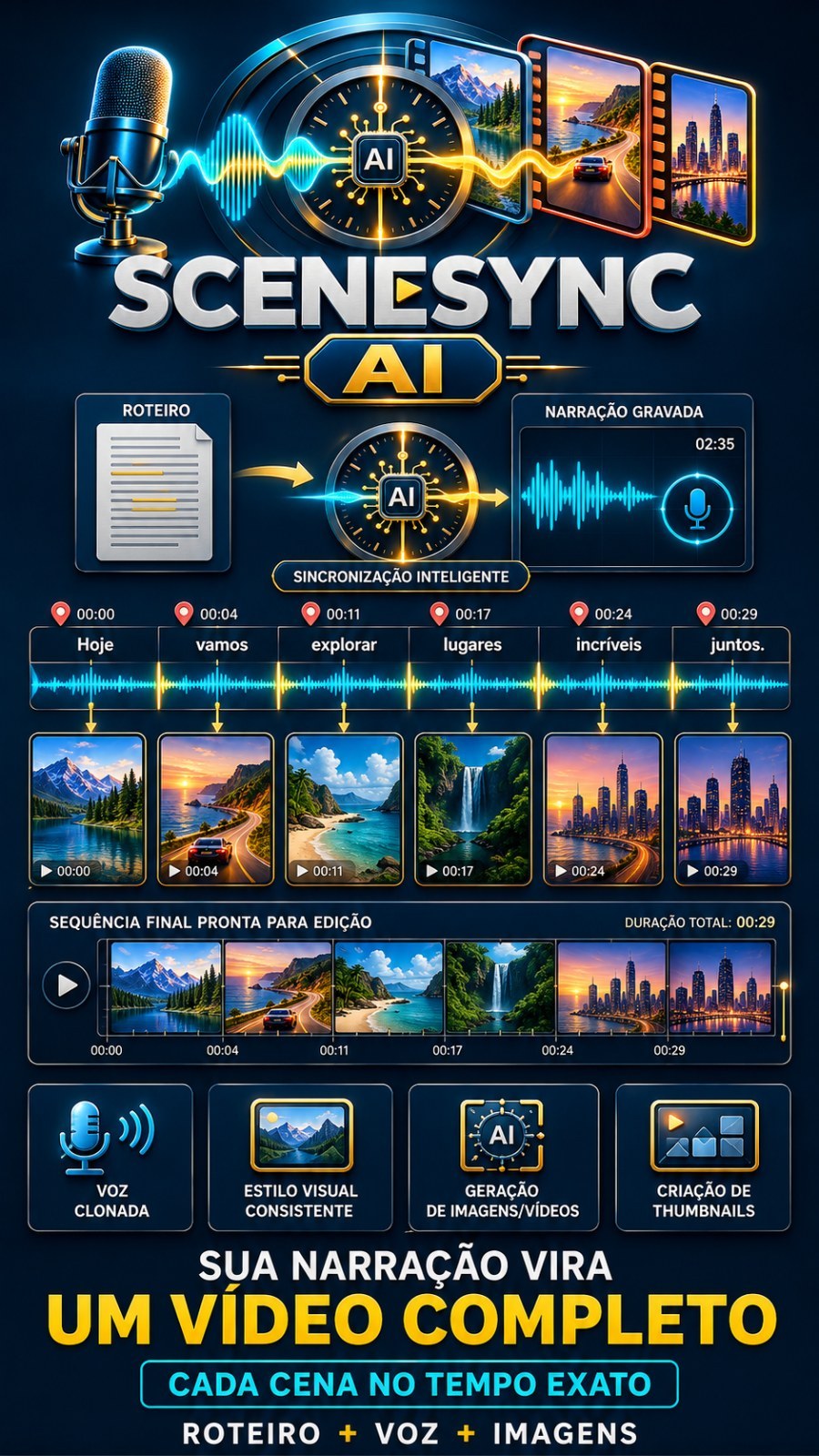
SceneSync AI turns a theme, script or ready-made narration into an illustrated video from start to finish: it narrates, times every word, writes a prompt for each part of the speech and generates the image or video with the exact duration of that section. You receive the media already inserted into the narration time, ready to assemble.
How to get the program
Download the file to your Like Points download area, right click on the zipped file, choose Extract All and open the folder that appears. Inside it, double-click SceneSyncAI.
Don't just drag the program to the Desktop. It needs the files that are in the same folder. Want a shortcut? Right click on the program and choose Send to > Desktop (create shortcut).
When opening, the program asks for the email and password for your Like Points account — the same as the website. There is no serial number: your account is your license, and it is what releases the resources.
What the program does
- Write the script from scratch. You give the theme, choose the narration style and word size, and the artificial intelligence writes. It's for those who have an idea and don't want to stop writing it.
- Suggest themes. No idea today? The suggestions button returns topics linked to the topic of your channel.
- Study sources before writing. Paste links to articles, YouTube videos or files from your computer: the content becomes reference material for the screenwriter. This is what separates a generic text from one with concrete data.
- Accept the script you already have. Paste the text or send a text, Word or PDF file. Scene tags, brackets and "narrator:" are removed alone — all that's left is what the voice will read.
- Accepts the already recorded narration. Send the audio, or even a video: the time of each word comes out of the transcription and the media is embedded in your voice. If you also have the text, paste it together — the time comes from the audio and the spelling comes from your text, so transcription errors don't ruin the scenes.
- Narrate with ready voices in Portuguese, English and Spanish, with speed and tone adjustment, and preview to listen before producing.
- Clones your voice. Send 10 to 30 seconds of clean speech and the narration starts with it.
- Maintains a unique visual style. The chosen style is present in every scene — it's what makes the video look like a single work, and not thirty separate images. You can add fixed instructions, such as “protagonist always wears a red jacket”.
- Choose where to generate each media. Video and image models, free media banks or generation that do not require any registration. You define how many videos and how many artificial intelligence images each production can use.
- Generates from your own Google Flow account. Those who have a Flow plan produce the clips there, through the browser, using the credits from the plan itself. If you don't have one, ignore this tab — everything else works the same.
- Create the poster-style cover. Artificial intelligence writes the short call and the program designs the art: colored box, veil over the image and thick font. The image model only provides the background, without any lyrics — that's why the text never comes out crooked. You can order up to four variants, use your own background image, write the call in your hand and redo the cover of an old video.
- Organize everything into projects. Each project saves that channel's voice, style, templates, and delivery folder.
- Shows the queue. Track progress, pause, cancel or redo an item without losing the rest.
- Delivery ready for editing. Each media is named by position and time, so just drag the folder into your video editor and everything falls into place. Nothing is erased.
- Speaks six languages. Portuguese, English, Spanish, French, German and Japanese, using the flags at the top of the screen.
Step by step
- Open the program and enter your Like Points account email and password.
- In Projects, create a project with the name of the channel and, if you want, the folder where the deliveries should go.
- In Script and sources, choose the starting point: generate from scratch, paste the finished script or send the recorded narration. To generate from scratch, enter the theme, style and size and click Write script.
- In Voice and audio, choose the language and voice, adjust speed and tone and click Listen preview.
- In Visual style, choose how the scenes look and, if you want, write fixed instructions. Set the maximum number of AI videos and images per production.
- In Models, check the video model, image model and resolution.
- In Thumbnail, leave it checked to generate the cover along with the video and choose the style.
- In Produce, check the title and click to get started. Follow at Queue.
- When finished, go to Deliveries and click to open the folder with the numbered media.
Settings you adjust via the screen
- Language and voice of narration — Brazilian Portuguese standard. Changes the spoken language and timbre.
- Speed and tone — zero pattern on both. Positive values make speech faster or sharper.
- Transcriber — default Automatic. Used when you send ready-made audio or use cloned voice. There is also the option that runs on your own computer, without consuming anything from your account.
- Drawing style and extra instructions — applied to all scenes.
- Maximum artificial intelligence videos and images — zero standard, which means no limit. It is the most direct control of the consumption of each production.
- Zoom in images — on by default: gives slow motion to still scenes.
- Drop into media bank if failed — on by default: if a model fails, the scene comes from the free bank instead of a hole in the video.
- Video resolution — 480p, 720p or 1080p.
- Cover — generate along with the video, number of variants, style, highlight color, text position, stamp and handwritten call.
- Google Flow account — account nickname, model, how many media per order and whether the browser window appears while working.
Required API Keys
The keys are stored in the your Like Points account, on the website — the program never asks for a key on the screen and reads everything by itself when opening. If your plan already includes usage, you don't need to register anything. Want to use your own key? Register using the links below.
Important: Did you register or exchange a key with the program open? Close and reopen the program — keys are read upon opening.
- OpenAI (optional — script writing, cover headlines, images and transcription): register on the panel · video tutorial
- OpenRouter (optional — writing the script using various models): register on the panel · video tutorial
- Google Gemini (optional — writing, images and video): register on the panel · video tutorial
- AssemblyAI (optional — transcription of the sent audio and the cloned voice): register on the panel · video tutorial
- Replicate (optional — extra image and video templates): register on the panel · video tutorial
- Stable Diffusion (optional — images): register on the panel · video tutorial
- Pexels (optional — free video and photo bank): register on the panel · video tutorial
- Pixabay (optional — free video and photo bank): register on the panel · video tutorial
- kie.ai (optional — video templates): register on the panel · no video
Requirements and limits
- Windows 64 bits. You don't need to install anything else: everything the program uses is included in the package.
- Internet connected. Access is granted at each opening and generation takes place on the model servers.
- Active Like Points account, with this tool available in your plan.
- Accepted audio: mp3, wav, m4a — or a video. Accepted script: text file, Word or PDF.
- Sample to clone voice: 10 to 30 seconds of clean speech, without music in the background.
- One production at a time. The rest wait in line, in order.
- To generate using a Google Flow account, you must have an active Flow plan and the Google Chrome browser installed.
If something goes wrong
- Returned to the login screen — the session crashed or the account was logged into another computer. Log in again.
- "Your account does not have text AI enabled" — the plan does not include writing, or the key has now been registered. Check the plan, close the program and open it again.
- I just signed up for the plan and the program didn't see it — close and open. If you prefer, use Check again in the account resources tab.
- A scene came from the media bank instead of generated — the model failed and the program filled it in so as not to leave a hole in the video. Redo that item through the Queue.
- The narration does not match the image — if you sent the finished audio, also paste the script text: the spelling comes from your text.
- The program appears open and does not open — click on it again: the stuck copy closes itself and the new one takes over.
- I closed the browser tab — the program ends itself in a few seconds. To close instantly, use End program, at the top of the screen.
- Any other problem — click Bug reporting, at the top of the screen. The file is saved on your Desktop; send it to support.
Want The Complete Ecosystem?
After reading the details, many people prefer to guarantee greater access rather than deciding tool by tool.
Other Tools to Show Along