public demonstration without download or serial
Editor
Reeditor Pro — a video becomes several different postsReeditor Pro takes a video of yours and returns several versions that are technically different from each other: cut, rhythm, color, framing, subtitles, track and cover in each...
202public views
Videodemo available
1related areas
Did you like this tool?
Take this for a stronger offering: full access, combo with training or the master version with larger window.
Presentation
Specifications
Compatibility
Windows 10/11. Recommended: Windows 11.
Last updated08/10/2026 19:16
Version/download
link updated on 10/08/2026
Public access typePresentation, video and description only. Download and serial remain protected.
Purchase Shortcut
This space welcomes those who have already seen the presentation and are ready to move on.
What This Tool Does
Reeditor Pro — one video becomes several different posts
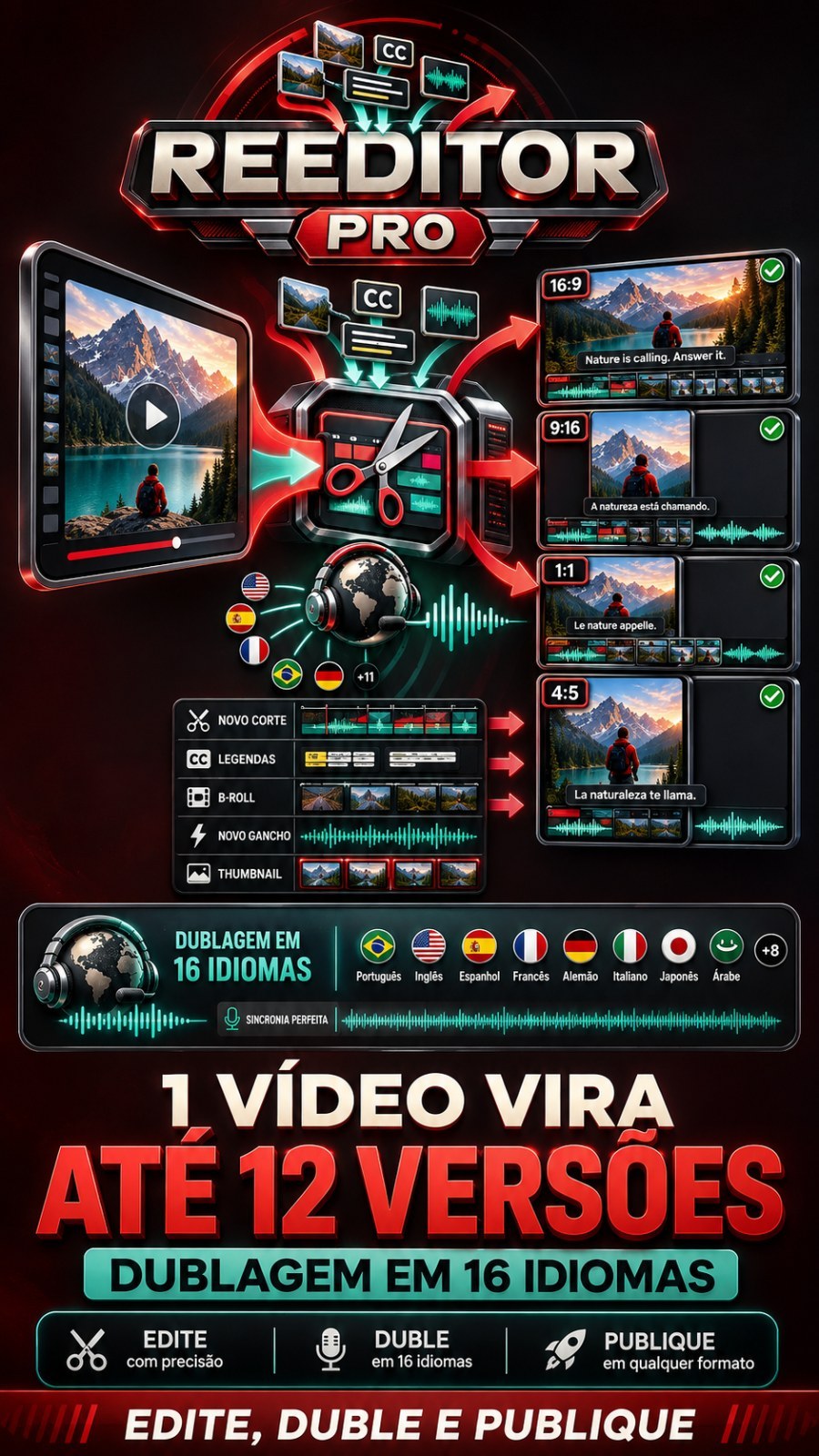
Reeditor Pro takes a video of yours and returns multiple versions technically different each other: cut, rhythm, color, framing, subtitles, track and cover specific to each one. Used to publish the same content on multiple channels and profiles without delivering identical files. He also doubles the video in other languages with your own cloned voice.
How to enter
Download the program from this page, extract the entire folder and open the Re-Editor-Pro. On the first screen you enter the same email and password as your Like Points account. There is no serial and there is nothing to register within the program: everything your plan releases arrives alone when you enter.
What the program does
1. Produce multiple versions of a video
You choose the video (file on your computer, an entire folder at once, or a link from YouTube) and say how many versions you want. Each version comes out with a different editing combination, so none of them are the same as the other or the original.
- How many versions per video — from 1 to 12. More versions, more different posts of the same content.
- Format — keep the original, horizontal 16:9, vertical 9:16, square 1:1 or feed 4:5. This is what separates YouTube video from Reels, TikTok and Shorts videos.
- Reissue intensity — Light (more faithful to the original), Medium (balanced) or Strong (maximum difference between versions).
- Batch folder — points to a folder and all the videos in it are queued at once.
2. Just dub, no re-editing
Mode for video that cannot be changed: class, lecture, interview, video from another channel. The video comes out exactly the same, only speaking another language, with your voice cloned. It doesn't cut, it doesn't rearrange, it doesn't change the color.
3. Dubbing in 16 languages with your voice
English, Spanish, Portuguese, French, German, Italian, Japanese, Korean, Chinese, Russian, Arabic, Hindi, Indonesian, Turkish, Polish and Dutch. Each language generates an extra file per version.
- The speech is embedded in the exact time you speak, so the dubbing continues to match the image.
- With the voice cloning installed, the dubbing comes out with your voice. Without it, it comes out with a synthetic voice — it translates and synchronizes in the same way.
- You can indicate a reference audio of the voice (30 to 60 seconds, speaking clearly) so that the channel always maintains the same voice.
4. Re-editing techniques (turn each one on and off)
- Jump cut of silence — removes pauses, breaths and dead time. Makes the video faster to watch.
- AI reordering — moves independent blocks to another point in the video, without losing meaning.
- Micro-speed — varies the speed between -6% and +9%, throughout the video and per section.
- Framework — zoom, pan and slight camera movement.
- Color correction — different color curve, contrast, saturation and temperature in each version.
- Grain and vignette — subtle texture that changes each frame without disturbing the viewer.
- Dynamic caption — animated caption made from what you said.
- Kinetic text — the key words in your speech appear written on the screen.
- Illustrative B-roll — searches for supporting images and videos to illustrate what is being said.
- Split screen — places the supporting scene next to yours.
- Background trail — change the music and turn it down on its own when you speak.
- Audio Print — small changes in tone and equalization, so the audio stops clashing with the original.
- Transitions — entry of blocks with dry cutting, punch, whip or flash.
- Mirror image — flips the image horizontally. Attention: it also inverts texts that appear in the video.
- Continuous micro-edits — the "millimeter": expands the frame in the corners, rotates less than half a degree and crops a few pixels per side. No one notices and no two pictures look the same.
5. On-screen text and caption
- What appears written — full caption plus headlines, just caption, just headlines, or nothing.
- Caption style — automatic (changes with each version), karaoke (word lights up), pop, block with box, large centralized, typewriter or minimalist.
- Headline style — black stripe at the top, neon, large center, dark card, footer or yellow highlighter.
- Position on screen — footer, bottom third (above the player bar), top, or let the program decide.
- Source e maximum number of headlines by video.
6. New AI-generated hook
Creates an unprecedented opening lasting a few seconds, with text written by AI and scenes from the strongest moments of the video itself. You choose the duration, how many scenes and whether the speech uses your cloned voice or a voice from the catalog.
7. Narration — change the voice in the video
Redo the speech in the same language, fitting into the original time. The same content comes out with a different voice on each channel. You can tag multiple voices: each version uses one.
8. Cloned Voices Library
Save voices from your video or audio: choose the file, the second it starts and the length of the excerpt. Then just choose the voice by name in dubbing and narration.
9. Automatic SEO and cover
- Each version comes with title, description and tags ready, recorded alongside the video.
- Cover automatically generated. You choose how: a frame from the video itself (does not use anything external) or AI generation.
- Accent color e text position of the cover.
- If an image with the same name as the video already exists in the folder, it is used and nothing is generated.
10. Projects (one per channel or profile)
Project is the destination of the video. Each version can fall into a different project, already in the right folder. In each project you define:
- Folder where videos are recorded;
- SEO Rules of the channel (how to write title and description) and cover prompt;
- Own format, highlight color and type of cover;
- Languages in which the channel publishes e a channel voice — every video that appears there also comes out in these languages;
- YouTube's channel where the videos go and the posting schedule.
11. Search for videos directly from a YouTube channel
Paste a channel, playlist or video link into the project. The program lists what is there, you mark what you want and it downloads, re-edits (or just dubs) itself. What has already appeared once does not appear again in the next search.
- Choose between normal videos or Shorts;
- Order: newest, most viewed, oldest or random;
- How many to search at a time and accepted duration (minimum and maximum, in minutes).
12. Auto send to YouTube
Connect your accounts and the program publishes the ready-made videos on the project channel, with title, description, tags and cover. You can define the rhythm (how many per day or per week), the days and time of posting, and whether the video is public, unlisted or private.
13. Queue you control
Everything is in a queue with a progress bar and the step it is at. You can pause, resume, cancel, repeat an item, change the order and open the result folder. The queue continues where it left off when you close and open the program.
Step by step (the common path)
- Open the program and enter your Like Points account email and password.
- In the tab Produce, choose what to do: Reissue in multiple versions or Just dub in other languages.
- Add video: click Choose video, drag the file, use Batch folder or paste a link of YouTube.
- Choose the destination folder, how many versions and the format.
- If you want dubbing, check the languages in Dubbing languages.
- Click Add to production queue.
- Follow the tab Queue. When finished, click open to go directly to the finished video folder.
Settings (all on the program screen)
- Techniques — turns each re-editing technique on and off, sets on-screen text, subtitles, hook and b-roll.
- Settings → Audio — folder for your background music and media folder for b-roll.
- Settings → Dubbing — install voice cloning, reference audio, and the language spoken in the original video.
- Settings → Narration — change the voice of the video and choose the voices used.
- Adjustments → SEO and cover — cover type, highlight color and text position.
- Settings → Render — acceleration by video card (automatic or off), quality and watermark.
- My account — your plan, what it releases, bug report, and the installed version.
The interface language is shown in the flags in the top right corner: Portuguese, English, Spanish, French, German and Japanese.
Required API Keys
The keys are not registered within the program — they are located on your Like Points panel and arrive alone when you enter. Depending on your plan, some are already included and you don't need to register anything. If you register or exchange a key with the program open, close and open the program for it to read the new key.
- AssemblyAI — mandatory. She is the one who understands what you said; without it there are no subtitles, kinetic text, dubbing or reordering by context. Register on the panel · Video tutorial
- OpenAI — text AI required. Creates the video's editorial map, titles, description and tags. Register on the panel · Video tutorial
- OpenRouter — Text AI alternative (optional). Enter when the first one fails or ends. Register on the panel · Video tutorial
- Gemini — Text AI alternative (optional). Register on the panel · Video tutorial
- Anthropic (Claude) — Text AI alternative (optional). Register on the panel · no video
- Pexels — optional. Video and image bank used in b-roll. Without it, b-roll only uses your media folder. Register on the panel · Video tutorial
- Pixabay — optional. Second b-roll media bank. Register on the panel · Video tutorial
- kie.ai — optional. Generates the cover by AI. Without it, the cover is made with a frame from the video itself. Register on the panel · no video
- ElevenLabs — optional. Extra voices for narration and dubbing. Register on the panel · no video
- YouTube Data — optional. Used in resources linked to the YouTube. Register on the panel · Video tutorial
Requirements and limits
- Windows 64 bits. You don't need to install anything else: the program is already complete.
- Need internet. The account is checked every time you open it and from time to time while using it.
- Accepts MP4, MOV, MKV, WEBM, AVI, M4V and WMV.
- Video shorter than 3 seconds is not accepted.
- Voice cloning is optional and downloads about 4 GB the first time (20 to 40 minutes). Without it, dubbing continues to work with a synthetic voice.
- Rendering video is cumbersome: the more versions and more languages, the more time. Video card helps a lot.
- Leave free disk space: each version generates one file, and each language generates one more.
Common mistakes and what to do
- "Your session has ended" — the account was opened on another computer, the internet went down or the signature changed. Click Sign in again. The queue stops by itself at this point, on purpose: without an active account, the video would be incomplete.
- "This tool is not part of your plan" — your account exists, but Reeditor Pro is not enabled on it. The notice itself shows the link to the plans.
- I registered the key and the program doesn't see it — close and open the program. Keys are read upon opening.
- "The file is no longer there" — the video was moved, renamed, or was on a flash drive that was lost. Add the video again.
- Video without subtitles and without text on the screen — transcription is missing. Check the tab My account if the AssemblyAI is available in your plan.
- Dubbing came out with a voice that is not yours — voice cloning is not installed. Go to Settings → Dubbing and click install.
- No b-roll in the video — without a media bank released, the program only uses its own media folder. Point a folder at Settings → Audio or register Pexels and Pixabay.
- Any other problem — click Download bug report. The file is saved on your Desktop; just attach it to the support. He never takes your password or your keys.
How to close the program
Closing the window turns off the program. If you prefer, use the button Close the Republisher in the left column: it stops the queue and closes any browsers that the program has open
Want The Complete Ecosystem?
After reading the details, many people prefer to guarantee greater access rather than deciding tool by tool.
Other Tools to Show Along